A WooCommerce store is two sites in one. Product and category pages can be cached like a blog. Cart, checkout and My Account can't, because they show one customer's data, so every request for them runs through PHP and the database. Most "speed up WooCommerce" advice is about the first half. The buying happens in the second.
This guide covers what's specific to WooCommerce. For the general diagnosis (is it the server, the code, the assets or third-party scripts?), start with why your WordPress site is slow. Everything there applies to a store too.
Measure the store, not just the homepage
Test four pages: the homepage, a category page, a product page, and the cart with something in it. The first three go through PageSpeed Insights on mobile. It can't add to cart, so for the cart and checkout open Chrome DevTools, go to the Network panel, reload, and click the first request: the Timing tab shows how long the server took to respond.
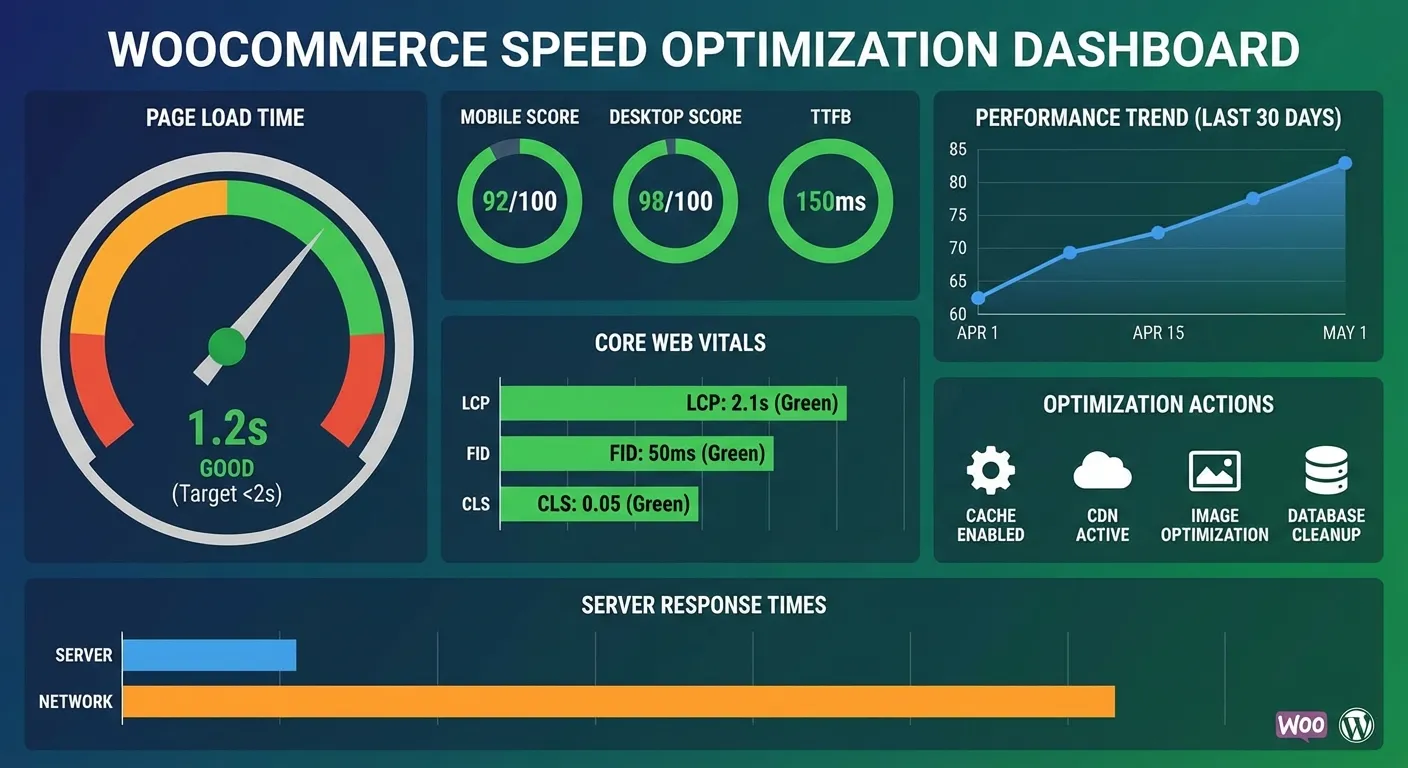
The targets are the usual Core Web Vitals: LCP at 2.5 s or less, INP at 200 ms or less, CLS at 0.1 or less, measured at the 75th percentile of visits. On product pages the LCP element is usually the main product photo. On checkout, INP is the one to watch, because it measures how quickly the page reacts while someone types an address or picks a shipping method.
If the cached pages are fast and the cart and checkout are slow, read on: that's the typical WooCommerce pattern, and caching won't fix it.
Get the caching rules right
A page cache serves stored HTML to everyone. That's perfect for product pages and dangerous for anything personal. WooCommerce's caching guide says to exclude three pages from the cache:
- Cart
- My Account
- Checkout
It also lists the cookies WooCommerce uses to track a customer's cart, including woocommerce_cart_hash, woocommerce_items_in_cart and wp_woocommerce_session_. When a visitor has one of these, the cache should step aside. Most caching plugins and managed hosts do this by default, but check rather than assume, and check your CDN too: a "cache everything" rule at the CDN ignores what your plugin was told.
The pages you can't cache are where a persistent object cache (Redis or Memcached) pays off. It keeps database results in memory between requests, which helps cart, checkout, account pages and the admin. WordPress Site Health tells you if your site would benefit from one.
Turn on HPOS if you haven't
High-Performance Order Storage moves orders out of the general wp_posts and wp_postmeta tables into tables built for orders. It has been the default for new stores since WooCommerce 8.2 (October 2023). Older stores that were never switched over may still store orders the old way.
Check under WooCommerce → Settings → Advanced → Features. To switch an existing store, WooCommerce describes three steps:
- Turn on compatibility mode, which keeps orders synchronized to both storage types.
- Let the background sync finish. You can follow it under WooCommerce → Status → Scheduled Actions.
- Switch to HPOS. Keep compatibility mode on for a while afterwards; you can switch back if something misbehaves.
If a plugin isn't compatible, the option is greyed out and the Features page lists the plugin. Do the switch on a staging copy first. Be realistic about the result: HPOS speeds up order screens, order searches and anything that queries orders. It won't change how fast a product page loads.
Cart fragments: check before you disable
For years, every WooCommerce speed guide said to dequeue the wc-cart-fragments script, which updates the mini cart with an extra request on every page. That advice is out of date. Since WooCommerce 7.8, the script is no longer loaded on every page. It only loads when the classic Cart widget is on the page, when another script lists it as a dependency, or when code enqueues it on purpose.
So check first. Open DevTools, reload a product page and filter the Network panel for get_refreshed_fragments. If the request isn't there, there's nothing to fix. If it is, find out what loads it, usually the theme's header cart or a plugin. WooCommerce recommends the Mini-Cart block, which doesn't use the cart fragments API at all. Pasting the old dequeue snippet into functions.php can leave the header cart count stuck, so test adding and removing products after any change.
Background jobs and the database
WooCommerce and many store plugins (email, subscriptions, product feeds, marketplaces) queue their background work in Action Scheduler. You can see the queue under WooCommerce → Status → Scheduled Actions. Two things to look for:
- A long Past-due list. Jobs aren't running on time. On low-traffic stores, WP-Cron only runs when someone visits, so jobs pile up. Run cron from the server instead (
define( 'DISABLE_WP_CRON', true );plus a real cron job, as the WordPress handbook describes). - Many failed actions from one hook. Something is broken, and it keeps retrying. Fix the cause before you clean up.
Action Scheduler cleans up after itself: by default it deletes completed and canceled actions after 31 days and failed ones after three times that (2678400 seconds in its source, adjustable with the action_scheduler_retention_period filter). If the tables are still huge, look for a plugin that schedules far more jobs than it needs.
Check autoloaded options too. A store collects plugin settings quickly, and since WordPress 6.6 Site Health warns when autoloaded options pass 800 KB. The query to measure them is in the general speed guide.
Product images and category pages
WooCommerce creates its own thumbnail and catalog image sizes (set them under Appearance → Customize → WooCommerce → Product Images). Upload photos at a sensible size rather than straight from the camera, and use WebP, or AVIF on WordPress 6.5+ if your server supports it.
The main product photo is usually the LCP element, so it must not be lazy-loaded. Gallery and zoom plugins sometimes load every image of every variation up front; check the product page's Network panel for images nobody has asked to see yet.
On category pages, the slow part is usually the query, not the images. Layered filters on many attributes can produce the slowest database queries on the whole site. Query Monitor shows which component runs them. Default WordPress search uses simple text matching across posts, which gets slow on large catalogs; a dedicated search index is the real fix there.
Checkout: fewer scripts
Checkout tends to collect scripts: payment gateways, address autocomplete, fraud checks, analytics and ad pixels. Each one runs while the customer is typing, which is exactly what INP measures. Open the checkout with DevTools and list every third-party domain that loads. Deactivate gateway plugins you no longer use instead of only switching the method off, and move marketing tags off checkout where your tracking allows it.
Advice you can skip
- "Enable GZIP." Almost every host and CDN compresses text already, many with Brotli. Check the
content-encodingresponse header in DevTools. If it saysbrorgzip, move on. - "Disable cart fragments everywhere." See above. Since 7.8 there's usually nothing to disable.
- "Switch hosts first." Measure TTFB first. A new server won't fix a plugin that spends a second on remote API calls.
- Two optimization plugins at once. Two page caches or two minifiers fight each other. Pick one.
Checklist
- Measure home, category, product and cart, on mobile.
- Confirm Cart, Checkout and My Account are excluded from the page cache and the CDN.
- Ask for a persistent object cache if Site Health recommends one.
- Check HPOS under WooCommerce → Settings → Advanced → Features.
- Search the Network panel for
get_refreshed_fragmentsbefore touching cart fragments. - Look at Scheduled Actions for past-due and failed jobs.
- Check that the main product image isn't lazy-loaded.
- List the third-party scripts on checkout and remove what you don't need.
If you'd rather not do this on a live store, WooCommerce performance optimization is a flat-price job: I measure, fix on staging, then ship and measure again. For new stores or bigger changes, see e-commerce development, or send me your store URL.

15+ years building WordPress sites, plugins and web apps, including 7+ years as a full-stack developer on the Xagio team (the SEO & AEO platform behind a WordPress plugin with 10,000+ active installs). Now AI-accelerated: fixes in hours, sites in days. More about me →