If you search for "wordpress plugin calendar events" you will find dozens of ready made plugins. Many of them are powerful, but sometimes you need something much simpler:
- only a few events
- a clean list or basic calendar on your site
- code you fully control
- no huge plugin with 100 settings you will never touch
In this tutorial you will:
- create a simple WordPress plugin for events
- register a custom post type for calendar events
- add fields for event date and location
- display upcoming events with a shortcode
Along the way you will also see where generic plugins stop being enough and when a custom WordPress plugin makes more sense.
If at the end you realize you need a more advanced solution, that is exactly the kind of work I do with custom plugins for businesses.
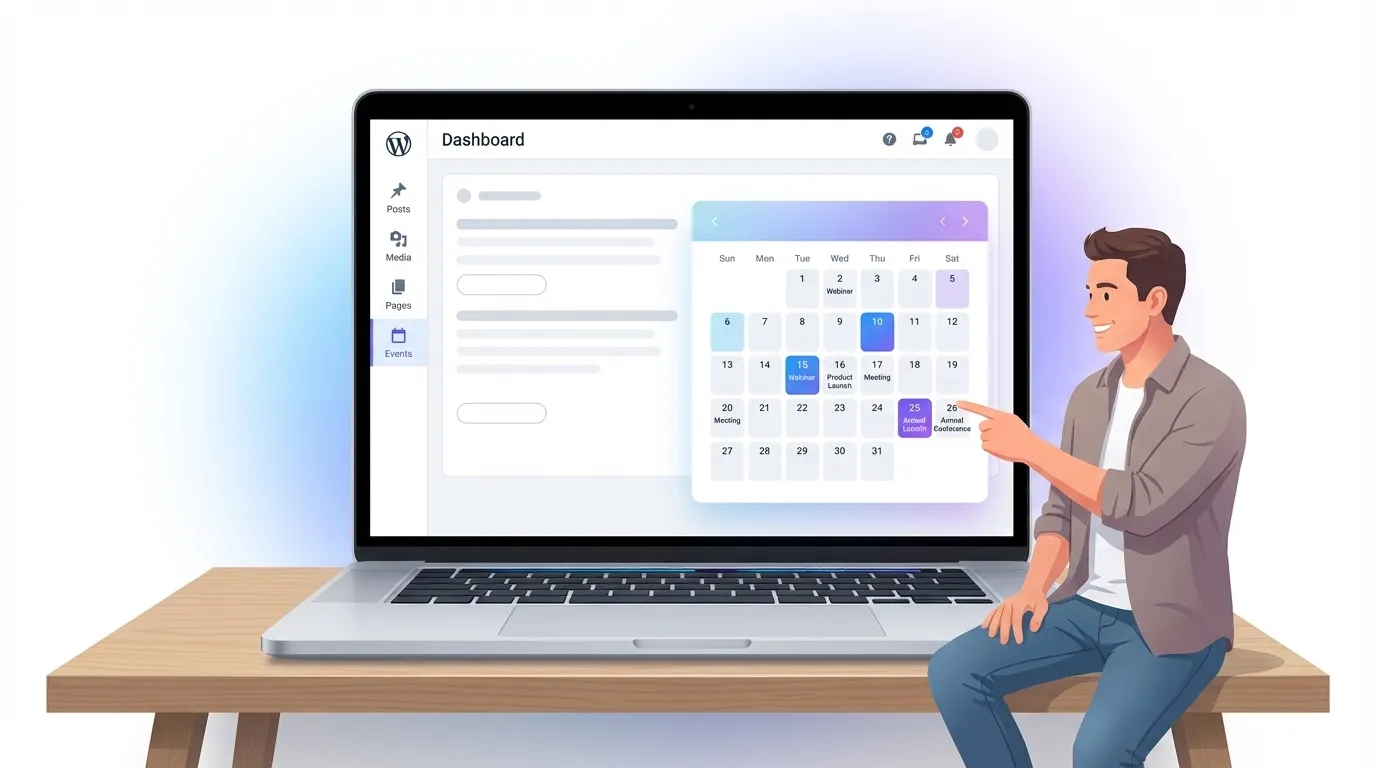
What we are going to build
We will build a small plugin that:
- registers a custom post type called "Events"
- adds fields for event date and location
- shows upcoming events with a shortcode
[simple_events]
This is intentionally minimal. The point is to understand the structure and how a "WordPress plugin calendar events" solution works behind the scenes, not to replace every existing calendar plugin.
If you already know you need things like complex recurring rules, registrations or integrations with external systems, that is where a custom built plugin starts to become a better option than stacking multiple random plugins. You can see how I approach custom plugin work here:
https://tailoredfix.com/en/services/wordpress-custom-plugin
Step 1: Create the plugin folder and main file
On your server, go to the existing folder:
wp-content/plugins/
Inside that plugins directory, create a new folder for your plugin, for example:
wp-content/plugins/simple-events-calendar
Inside that folder, create a file named:
simple-events-calendar.php
Open simple-events-calendar.php in a code editor and add this header:
<?php
/**
 * Plugin Name: Simple Events Calendar
 * Description: A simple WordPress plugin that adds a custom events post type and displays upcoming events.
 * Version: 1.0.0
 * Author: Your Name
 */

if ( ! defined( 'ABSPATH' ) ) {
    exit;
}
This tells WordPress that this is a plugin and prevents direct access to the file.
After you upload this folder and file, go to Plugins in the WordPress admin, and you should see "Simple Events Calendar" ready to activate.
Step 2: Register a custom post type for events
Now register an sec_event post type that will store your calendar events.
Add this below the previous code in the same file:
function sec_register_event_post_type() {

    $labels = array(
        'name'               => 'Events',
        'singular_name'      => 'Event',
        'menu_name'          => 'Events',
        'name_admin_bar'     => 'Event',
        'add_new'            => 'Add New',
        'add_new_item'       => 'Add New Event',
        'new_item'           => 'New Event',
        'edit_item'          => 'Edit Event',
        'view_item'          => 'View Event',
        'all_items'          => 'All Events',
        'search_items'       => 'Search Events',
        'not_found'          => 'No events found.',
        'not_found_in_trash' => 'No events found in Trash.',
    );

    $args = array(
        'labels'             => $labels,
        'public'             => true,
        'has_archive'        => true,
        'rewrite'            => array( 'slug' => 'events' ),
        'show_in_rest'       => true,
        'supports'           => array( 'title', 'editor', 'thumbnail' ),
        'menu_position'      => 20,
        'menu_icon'          => 'dashicons-calendar',
    );

    register_post_type( 'sec_event', $args );
}
add_action( 'init', 'sec_register_event_post_type' );
Save the file, refresh the WordPress admin, and you should see a new "Events" menu item in the sidebar.
You can already add events, but we still need specific fields for event date and location so this becomes a useful calendar events plugin.
Step 3: Add date and location fields with a meta box
We will add a meta box with two fields:
- event date
- event location
Add this code to create the meta box:
function sec_add_event_meta_box() {
    add_meta_box(
        'sec_event_details',
        'Event details',
        'sec_event_meta_box_callback',
        'sec_event',
        'normal',
        'default'
    );
}
add_action( 'add_meta_boxes', 'sec_add_event_meta_box' );
Now define the callback that outputs the fields inside the meta box:
function sec_event_meta_box_callback( $post ) {

    wp_nonce_field( 'sec_save_event_details', 'sec_event_nonce' );

    $date     = get_post_meta( $post->ID, '_sec_event_date', true );
    $location = get_post_meta( $post->ID, '_sec_event_location', true );

    ?>
    <p>
        <label for="sec_event_date">Event date (YYYY-MM-DD):</label><br>
        <input type="date" id="sec_event_date" name="sec_event_date" value="<?php echo esc_attr( $date ); ?>">
    </p>
    <p>
        <label for="sec_event_location">Location:</label><br>
        <input type="text" id="sec_event_location" name="sec_event_location" value="<?php echo esc_attr( $location ); ?>" style="width: 100%;">
    </p>
    <?php
}
Then add the save handler:
function sec_save_event_details( $post_id ) {

    if ( ! isset( $_POST['sec_event_nonce'] ) ) {
        return;
    }

    if ( ! wp_verify_nonce( $_POST['sec_event_nonce'], 'sec_save_event_details' ) ) {
        return;
    }

    if ( defined( 'DOING_AUTOSAVE' ) && DOING_AUTOSAVE ) {
        return;
    }

    if ( isset( $_POST['post_type'] ) && 'sec_event' === $_POST['post_type'] ) {
        if ( ! current_user_can( 'edit_post', $post_id ) ) {
            return;
        }
    }

    if ( isset( $_POST['sec_event_date'] ) ) {
        update_post_meta(
            $post_id,
            '_sec_event_date',
            sanitize_text_field( $_POST['sec_event_date'] )
        );
    }

    if ( isset( $_POST['sec_event_location'] ) ) {
        update_post_meta(
            $post_id,
            '_sec_event_location',
            sanitize_text_field( $_POST['sec_event_location'] )
        );
    }
}
add_action( 'save_post_sec_event', 'sec_save_event_details' );
Now when you edit an Event in the admin, you will see fields for the date and the location.
Step 4: Display upcoming events with a shortcode
To make this feel like a real "WordPress plugin calendar events" solution, we will display upcoming events on the front end with a simple shortcode [simple_events].
Add this code:
function sec_get_upcoming_events( $atts ) {

    $atts = shortcode_atts(
        array(
            'limit' => 5,
        ),
        $atts,
        'simple_events'
    );

    $today = date( 'Y-m-d' );

    $args = array(
        'post_type'      => 'sec_event',
        'posts_per_page' => intval( $atts['limit'] ),
        'meta_key'       => '_sec_event_date',
        'orderby'        => 'meta_value',
        'order'          => 'ASC',
        'meta_query'     => array(
            array(
                'key'     => '_sec_event_date',
                'value'   => $today,
                'compare' => '>=',
                'type'    => 'DATE',
            ),
        ),
    );

    $query = new WP_Query( $args );

    if ( ! $query->have_posts() ) {
        return '<p>No upcoming events.</p>';
    }

    ob_start();

    echo '<ul class="sec-events-list">';

    while ( $query->have_posts() ) {
        $query->the_post();

        $date     = get_post_meta( get_the_ID(), '_sec_event_date', true );
        $location = get_post_meta( get_the_ID(), '_sec_event_location', true );

        echo '<li class="sec-event-item">';
        echo '<strong>' . esc_html( get_the_title() ) . '</strong><br>';
        if ( $date ) {
            echo '<span class="sec-event-date">' . esc_html( $date ) . '</span><br>';
        }
        if ( $location ) {
            echo '<span class="sec-event-location">' . esc_html( $location ) . '</span><br>';
        }
        echo '</li>';
    }

    echo '</ul>';

    wp_reset_postdata();

    return ob_get_clean();
}
add_shortcode( 'simple_events', 'sec_get_upcoming_events' );
Now you can:
- create a few Events with dates in the future
- edit a page and insert the shortcode
[simple_events]
You will see a list of upcoming events sorted by date.
Step 5: Add basic styling
To make the output look nicer, add some simple CSS to your theme or a custom CSS area:
.sec-events-list {
    list-style: none;
    padding-left: 0;
    margin: 0 0 1.5rem 0;
}

.sec-event-item {
    margin-bottom: 1rem;
    padding: 0.75rem 1rem;
    border: 1px solid #e2e8f0;
    border-radius: 6px;
    background-color: #ffffff;
}

.sec-event-date,
.sec-event-location {
    font-size: 0.9rem;
    color: #4a5568;
}
This turns the list into small event cards that look more like a real calendar events widget.
When a simple events plugin is not enough
What we just built is a lightweight starting point. It is perfect if you need:
- a simple "WordPress plugin calendar events" setup
- full control over your code
- no heavy plugin dependencies
But real business setups often need more, for example:
- recurring events with different rules
- registrations, payments or limited capacity
- integration with Google Calendar, Outlook or internal tools
- custom dashboards for your team
- specific permissions and workflows
You can keep extending this plugin, but over time you may notice that your code grows, edge cases multiply and performance starts to matter more.
At that point, it is usually better to treat it as a proper custom WordPress plugin project instead of a quick one file experiment.
How a custom events plugin can work for your business
Here are a few real world style scenarios where a custom plugin is a better fit than generic calendar plugins:
- Local workshops or trainings
You manage events with different levels, capacities and instructors, and want automatic closing when a date fills up. - Internal company events
Events are visible only to logged in staff, with different views for departments and automatic notifications. - Marketing campaigns
Campaign calendars need to tie into content publishing, ads and reporting dashboards for each client.
In all these cases, a custom plugin lets you design the data structure, admin screens and front end output around your exact process instead of bending your process around a random plugin.
If you already see that your needs go beyond this simple tutorial, you can offload the planning and development to someone who builds custom WordPress plugins for a living.
Quick FAQ about custom calendar event plugins
Why not just use a ready made calendar plugin?
For many basic setups a ready made plugin is fine. Problems start when you need specific workflows, data structures or integrations that generic plugins were not designed for.
Can I keep extending this simple plugin myself?
Yes, you can add more fields, views and logic step by step. Just remember that more features also mean more code to test and maintain.
When does it make sense to invest in a custom plugin?
When you already tried several existing plugins, always hit a limitation or performance issue, and your process is important enough that it deserves its own tool.
Do you only work with events or other custom plugins too?
Events are just one example. Custom plugins can cover anything from internal dashboards and referral systems to integrations with third party APIs and custom business logic.

15+ years building WordPress sites, plugins and web apps, including 7+ years as a full-stack developer on the Xagio team (the SEO & AEO platform behind a WordPress plugin with 10,000+ active installs). Now AI-accelerated: fixes in hours, sites in days. More about me →