
You clicked "Update" on a plugin or theme, WordPress said it was doing maintenance, and now your site seems frozen.
Visitors only see the message:
"Briefly unavailable for scheduled maintenance. Check back in a minute."
You refresh. Nothing changes.
Here's the fact most guides leave out: WordPress switches maintenance mode off by itself 10 minutes after the update started, even if the update crashed halfway. So if the message is still there after that, the leftover file is usually not the whole story. In this guide you will see:
- how WordPress maintenance mode works, and the 10-minute rule
- what to check when the message outlives those 10 minutes
- how to get your site back online step by step
- what to do so this does not keep happening
If you decide you do not want to deal with this yourself, you can hand it over to my WordPress maintenance and support service.

What is WordPress maintenance mode and why does it get stuck?
When you run updates in WordPress, it briefly puts the site into a special state called "maintenance mode".
During this time WordPress:
- shows visitors a temporary message
- runs plugin and theme updates
- then turns maintenance mode off automatically
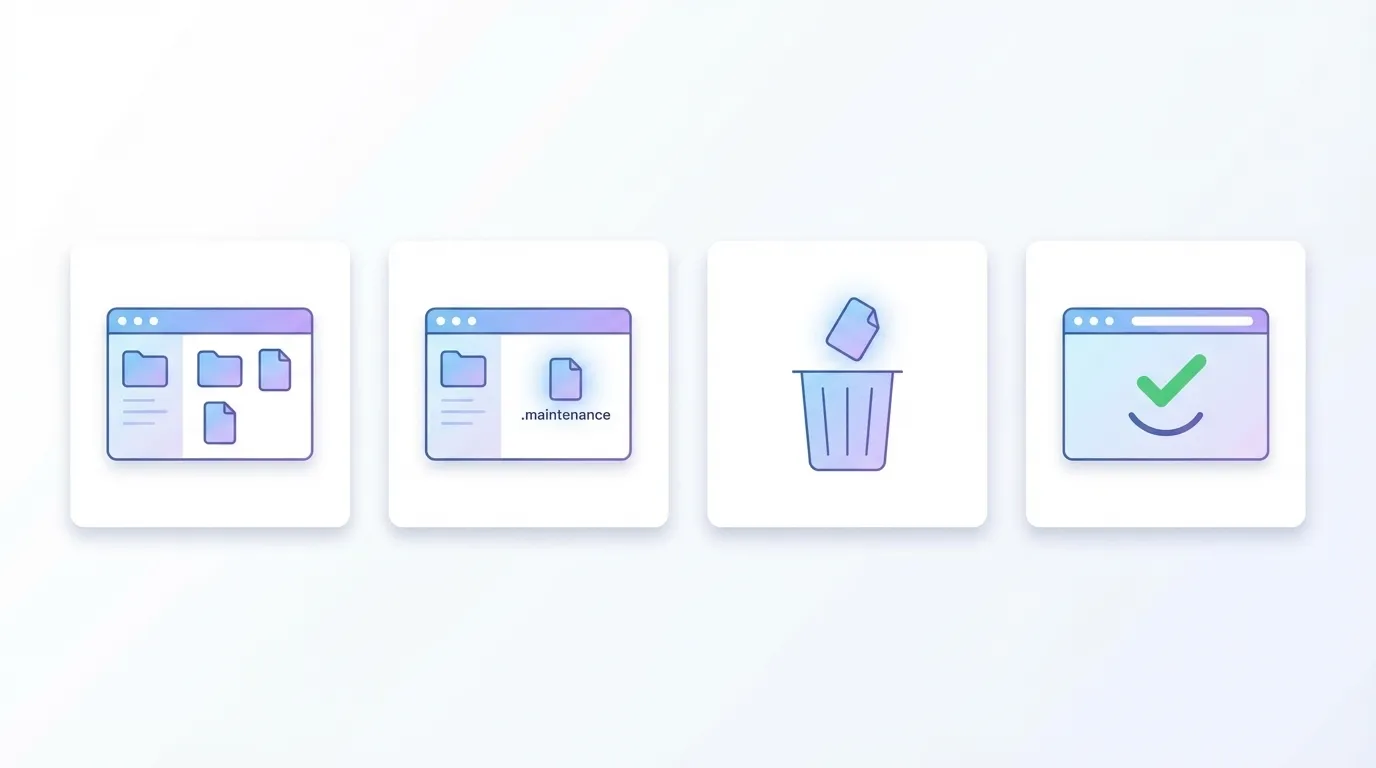
Technically, WordPress creates a small file in the root folder of your site called .maintenance. When updates finish, it deletes that file. The file holds a single line with the time the update started, for example <?php $upgrading = 1762423200; ?>. That timestamp matters, as you'll see in a moment.
Your site gets stuck in maintenance mode when something interrupts that process, for example:
- the update takes too long and times out
- the server is slow or overloaded
- you close the browser tab in the middle of the update
- you try to update too many plugins or themes at once
- there is a conflict or fatal error during the update
Result: the .maintenance file stays behind. It does not keep your site down forever, though.
The 10-minute rule
On every request, WordPress checks that file in wp_is_maintenance_mode(), in wp-includes/load.php. This is the check in current WordPress core:
// If the $upgrading timestamp is older than 10 minutes, consider maintenance over.
if ( ( time() - $upgrading ) >= 10 * MINUTE_IN_SECONDS ) {
	return false;
}
In plain words: once the timestamp in .maintenance is 10 minutes old, WordPress ignores the file and loads the site normally (see the function reference and the source). While maintenance mode is active, the message goes out with a 503 status, a Retry-After: 600 header (600 seconds, the same 10 minutes) and headers that tell caches not to store it.
So when a site stays "stuck" for longer than 10 minutes, the cause is usually one of these. Check them in this order:
- A cached copy of the maintenance page. WordPress asks caches not to keep it, but a CDN rule that caches everything regardless of headers, or a server cache set up the same way, can keep serving it. Look at the response headers with
curl -I https://yoursite.com/. Acf-cache-status: HIT(Cloudflare), anx-cache: HITor anageheader means you are looking at a stored copy. Purge the CDN and the server cache. - An update that is still running, or started again. Every update run writes a fresh timestamp into
.maintenance, which restarts the clock. A long batch of updates or background auto-updates can keep it going. Check the file's modification time: if it keeps changing, something is still updating. - A
.maintenancefile that can never expire. Some snippets for putting a site into maintenance by hand write<?php $upgrading = time(); ?>. That value is always "now", so the 10-minute check never passes. Delete the file. - A maintenance plugin, not WordPress. Coming-soon and maintenance-mode plugins, and some hosting panels, have their own switch that has nothing to do with
.maintenance. If the page looks different from the plain WordPress message, check your plugins and the hosting panel. - A different error. "There has been a critical error on this website" or a blank white page is not maintenance mode. It's a PHP fatal error, often left by a half-finished update. WordPress emails a recovery-mode link to the site's admin address, and the server's error log names the plugin or theme.
Deleting .maintenance is still the right first move. It is harmless, and within the first 10 minutes it brings the site back straight away.
Step by step: how to fix "WordPress maintenance mode stuck"
The basic fix is simple: you remove the .maintenance file, then check that everything still works.
Step 1: Log in to your hosting file manager or use FTP
You need access to the files of your site. You can do this in one of two ways:
Hosting file manager
- Log in to your hosting control panel (cPanel, Plesk, or your provider dashboard).
- Look for "File Manager" or similar.
FTP / SFTP client
- Use a program like FileZilla or Cyberduck.
- Connect with the FTP or SFTP details from your host.
If you are not comfortable with this, it might be a sign you would rather let someone else handle maintenance, but for now follow along.
Step 2: Find your WordPress root folder
In your file manager or FTP, find the folder where WordPress is installed. Typical folder names:
public_htmlwww- a folder named after your domain
Inside the correct folder you should see files like:
wp-config.phpwp-login.php- folders like
wp-admin,wp-content,wp-includes
This is your WordPress root.
Step 3: Look for the .maintenance file
In this root folder, look for a file named:
.maintenance
Notes:
- It may be hidden by default because the name starts with a dot.
- In many file managers you need to turn on "show hidden files".
If you do not see it, check if there is an option like "Show Hidden Files (dotfiles)" in your file manager settings and enable it, then refresh.
Step 4: Delete the .maintenance file
Once you find .maintenance:
- Right click it and choose "Delete" or "Remove".
- Confirm the deletion.
You are not deleting any content or settings. You are only telling WordPress "maintenance is over".
Step 5: Clear cache and test your site
Now:
- Open your site in a new browser tab.
- If you use a caching plugin, clear its cache from the WordPress dashboard.
- If your host has server caching, clear that too if you have access.
- If you use a CDN such as Cloudflare, purge its cache as well.
Refresh the site a couple of times. In most cases, the maintenance message will disappear and your site will load again.
If your site is back, the emergency is over. Next, check that nothing broke during the update.
What to check after you fix maintenance mode
Even if your site loads, something may have gone wrong during the update that caused maintenance mode to get stuck in the first place. Take a few minutes to check.
1. Does the front end look and behave normally?
Click through:
- homepage
- key service or product pages
- contact form
- checkout or booking process if you have one
Look for:
- broken layouts
- missing sections
- error messages
- very slow pages
2. Which updates ran just before it got stuck?
Log in to WordPress and go to Dashboard → Updates or Dashboard → Plugins:
- Check which plugins and themes were updated recently.
- If you remember that everything froze during a specific plugin update, keep that plugin in mind.
If you see any plugin or theme showing a big error, consider deactivating it temporarily and see if the site stabilizes.
3. Are there any obvious errors in the admin area?
In the admin dashboard, watch for:
- warnings about PHP version
- warnings from security plugins
- error notices about missing files or functions
If everything looks clean, you probably just had a one time glitch.
If errors keep appearing, it points to a deeper maintenance or compatibility problem.
Why your WordPress site got stuck in maintenance mode in the first place
Fixing the stuck maintenance mode is one thing. Understanding why it happened helps you avoid repeat problems.
Common reasons:
- Slow or overloaded hosting
If your server is very slow or often overloaded, updates can time out before they finish. WordPress never gets the chance to delete the.maintenancefile. - Updating too many things at once
Running twenty plugin updates, a theme update and a core update in one click is risky. If one update fails, it can break the whole process. - Large or complex plugins
Some plugins are heavy and touch many parts of your site. If they take too long to update or hit memory limits, maintenance mode can get stuck. - Closing the browser or leaving the page during updates
If you close the tab or click away in the middle of the process, it can interrupt the update, especially on weaker hosting. - Lack of regular maintenance
When updates are ignored for months, conflicts are more likely. Jumping many versions in one step is more stressful for your site than smaller, regular updates.
If you feel you are constantly fighting plugin conflicts, it is often cleaner to replace several overlapping tools with one plugin built just for your workflow through custom WordPress plugin development.
A simple WordPress maintenance routine that prevents this mess
You do not need a huge corporate process. A small business site can be stable with a simple routine.
Here is a realistic example of what I set up for clients.
1. Regular automatic backups
Before a batch of updates, there should always be a recent backup.
- Daily or weekly backups, depending on how often content changes
- Stored off the server, not only on the same hosting
If something goes wrong, you can roll back without drama.
2. Smaller, safer update batches
Instead of "update everything" once in a long time:
- Update core, themes and plugins in smaller groups
- Start with less critical plugins
- Leave complex plugins like page builders, e commerce or big SEO suites for last and test after each one
This way, if maintenance mode or another issue appears, you have a good idea which change caused it.
3. Use a staging site for bigger changes
For bigger updates or redesigns:
- Use a staging copy of the site (many hosts offer this)
- Run updates and tests there first
- Only push changes to the live site when everything looks stable
This dramatically reduces the chance that visitors ever see your site broken.
4. Keep an eye on performance and errors
Part of maintenance is not only clicking "Update" but also watching:
- site speed and Core Web Vitals
- error logs on the server
- uptime and downtime
Catching problems early is much easier than cleaning up a big mess later.
5. Remove what you do not really use
The more plugins and random code you have, the more chances for conflicts and broken updates.
- Remove plugins you are not really using
- Avoid stacking multiple "all in one" plugins that overlap
- Prefer smaller, focused tools or custom solutions where it makes sense
Over time this makes your site faster, easier to maintain, and less likely to get stuck.
When it is smarter to ask for help
For many site owners, manually deleting .maintenance and checking a few pages is manageable. But there are situations where getting help is the safer choice, for example:
- your site is an active online shop or booking system
- you see white screens or hard errors instead of your site
- you cannot access your hosting or file manager confidently
- this is not the first time maintenance mode got stuck
- you already lost data or orders in a previous incident
In those cases it often costs less, in time and stress, to let someone who lives in WordPress every day handle it and set up a proper maintenance and support routine for you.
Here is how I usually approach it with clients:
- first, fix the immediate problem and get the site stable
- second, review hosting, plugins, backup setup and update habits
- third, propose a simple ongoing plan that fits their budget and how critical the site is
You keep control, but you no longer have to fear the "Update" button.
Quick FAQ
How long does WordPress maintenance mode last?
At most 10 minutes from the moment the update started. wp_is_maintenance_mode() in wp-includes/load.php ignores a .maintenance file older than that. If the message lasts longer, look at your page cache or CDN, a maintenance plugin, or a .maintenance file that uses time() as its timestamp.
Will I lose my content if I delete the .maintenance file?
No. The .maintenance file does not contain your posts, pages or settings. It is only a small switch that tells WordPress to show the maintenance message. Removing it simply tells WordPress that maintenance is over.
What if I cannot find the .maintenance file?
Make sure your file manager is set to show hidden files, sometimes called dotfiles. If it is really not there, WordPress is not the one showing the message: check your page cache and CDN, and any maintenance or coming-soon plugin.

15+ years building WordPress sites, plugins and web apps, including 7+ years as a full-stack developer on the Xagio team (the SEO & AEO platform behind a WordPress plugin with 10,000+ active installs). Now AI-accelerated: fixes in hours, sites in days. More about me →