
You log into your WordPress dashboard and see a long list of plugins. There are updates everywhere. The site feels slower than it used to.
You start to wonder:
Do I have too many WordPress plugins? Is this why my site is slow?
There is no magic number where plugin 21 suddenly kills your site. The real problem is plugin bloat: too many plugins doing too many things in the wrong way.
Here is what actually matters:
- what “too many plugins” really means
- how plugin bloat affects speed, security and stability
- how to identify the real problem plugins
- when you should replace a stack of plugins with one custom solution
If at the end you decide you want help cleaning things up or replacing plugin soup with something sane, you can lean on my speed optimization and custom plugin services instead of doing it alone.
The real problem is not “how many plugins” but which ones
You will find articles and Reddit threads arguing about whether 10, 20 or 40 plugins is “too many”. In reality:
- one badly coded plugin can hurt your site more than 10 good ones
- several plugins that duplicate the same job waste resources
- heavy front end plugins usually hurt performance more than small admin only tools
So instead of thinking “I must stay under X plugins”, a better question is:
Which of my plugins are actually necessary, efficient and maintained?
From a business point of view, plugin bloat shows up as:
- slower pages and lower Core Web Vitals
- more conflicts and random bugs after updates
- more time spent maintaining the site instead of growing the business
Let us look at why.
How plugin bloat slows down your WordPress site
Each plugin adds its own code, database queries and sometimes external requests. When you stack many of them together, you get:
1. Slower page loads
Typical issues:
- extra CSS and JS files on every page
- more database queries per request
- heavy front end features that run even where you do not need them
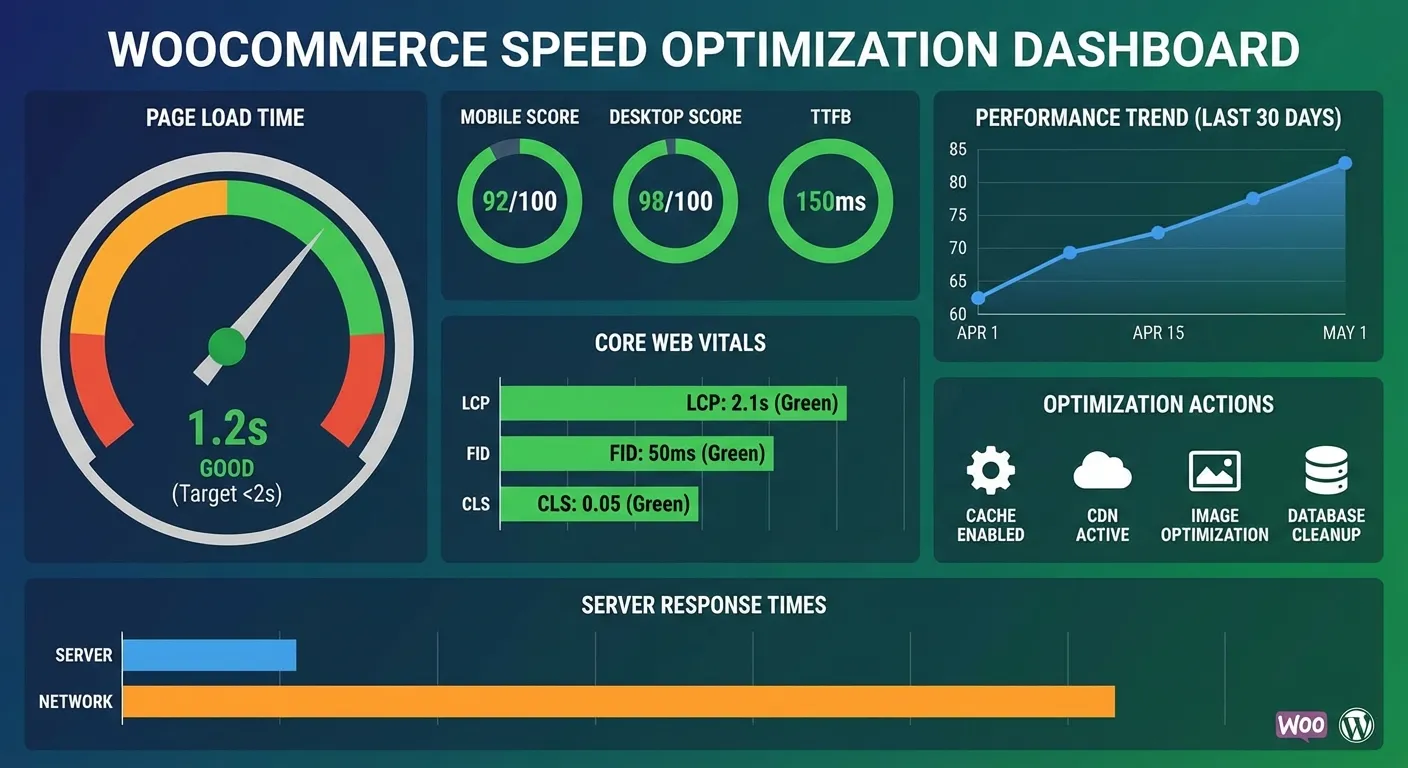
Google's target is for the main content to appear within 2.5 seconds (LCP), and every plugin that loads its files on every page makes that harder to hit.
2. More conflicts and random errors
When plugins are created by different developers, they are not guaranteed to play nicely together. With plugin bloat you are more likely to see:
- white screens or 500 errors after updates
- broken layouts on some pages but not others
- features silently stopping after a plugin change
3. Bigger security surface
Each plugin is another possible entry point:
- outdated or abandoned plugins can expose vulnerabilities
- cheap “all in one” plugins often skip security best practices
- more code means more chances that something is missed in audits
This does not mean you should panic. It just means plugin choices matter more than plugin count.
Quick self check: do you have a plugin problem?
Here is a fast way to see if plugins are part of your performance and stability issues.
Step 1: Take inventory
Open Plugins → Installed Plugins and make a list:
- which plugins do you actively use
- which ones were “temporary” but never removed
- which ones overlap in functionality
Mark any plugin you do not clearly need as “questionable”.
Step 2: Separate front end from admin only plugins
Front end plugins usually hurt performance more. For each plugin ask:
- Does it load CSS or JS on public pages
- Does it inject widgets, sliders, popups or tracking everywhere
Back end tools like migration or editorial helpers matter less for pure page speed, but they still add maintenance overhead.
Step 3: Run a quick speed test
Use a tool like PageSpeed Insights, GTmetrix or WebPageTest on a key page and look for:
- how many requests are loaded
- which plugin scripts or styles show up
- the impact on LCP and total blocking time
You do not need to obsess over numbers. You just want to see if heavy plugin assets are a big part of the waterfall.
How to safely declutter your plugins
Once you see the bloat, here is a simple cleanup plan that does not break everything.
1. Remove what you clearly do not use
Start with plugins that are obviously unused:
- old “coming soon” pages from launch
- experiments you tried and forgot
- duplicated tools, for example three analytics plugins
Deactivate one at a time and test the site. If everything looks good, delete them completely.
2. Replace overlapping plugins with a single tool
If you have:
- multiple form plugins
- multiple popup tools
- several “all in one” SEO or performance suites
consider consolidating to one reliable option in each category. Fewer moving parts means fewer conflicts.
3. Move small features into code instead of plugins
Sometimes a plugin is used just for one tiny feature, like:
- adding a small snippet in the head
- forcing SVG upload support
- changing the login logo
These are often better as small code snippets in a site specific plugin or theme functions instead of full blown plugins.
4. Review heavy front end plugins
Look for plugins that:
- load multiple scripts on every page
- add sliders, animation libraries, page builders on pages that do not use them
- significantly affect LCP or CLS in your speed tests
Disable them on a staging site or during off peak hours and see how performance changes. Often one or two heavy plugins are responsible for most of the slowdown.
When it is time to replace plugin soup with a custom plugin
There is a point where tuning and decluttering is not enough. Typical signs:
- you use 4 or 5 plugins to support one business workflow
- every update feels risky because too many things are connected
- you keep hitting limitations of existing plugins for your process
In those cases, one custom WordPress plugin is often a better business decision.
Examples:
- replacing several booking, pricing and notification plugins with one plugin built exactly for your booking rules
- turning a complex spreadsheet based process into a custom dashboard and logic inside WordPress
- building a single plugin that handles integrations with your CRM, payment gateway and reporting instead of 3 separate connectors
A custom plugin lets you:
- cut out unnecessary features
- optimize for your exact data and workflow
- avoid conflicts between multiple overlapping plugins
If this sounds like your situation, this is exactly what my Custom WordPress Plugin Development service is for:
Cleaning up plugins is easier when you also fix speed and maintenance
Plugin bloat is usually not a standalone problem. It connects with performance and maintenance:
- you are afraid to remove or update plugins because you do not have backups
- every change feels risky on a slow or unstable site
- there is no clear routine for updates and checks
This is why I combine plugin cleanup with:
- WordPress speed optimization
Tuning hosting, cache, assets and Core Web Vitals so your site can handle the necessary plugins gracefully. - WordPress maintenance plans
Ongoing updates, backups and monitoring so you are not scared of touching anything.
If you do not want to spend your evenings testing plugins on staging sites, you can hand that part over.

15+ years building WordPress sites, plugins and web apps, including 7+ years as a full-stack developer on the Xagio team (the SEO & AEO platform behind a WordPress plugin with 10,000+ active installs). Now AI-accelerated: fixes in hours, sites in days. More about me →